How to package and distribute an app
Reference: lifecycle (Start-NativeHTMLKitScript, Start-NativeHTMLKitHost),
tooling. Related: project scaffolding.
A NativeHTMLKit PowerShell app is a folder of scripts and page files plus the NativeHTMLKit
module, which bundles the native host for Linux x64 and Windows x64 and verifies its hash on every
launch. Users need PowerShell 7.2+ (Linux or Windows) or Windows PowerShell 5.1 (Windows).
Project layout
InventoryTool/
  app.ps1         entry point: Start-NativeHTMLKitScript, windows, handlers
  index.html      the page, loaded with Open-NativeHTMLKitFile (Join-Path $PSScriptRoot 'index.html')
  style.css       referenced from index.html with a relative URL
  lib/*.ps1       optional helpers, dot-sourced below Start-NativeHTMLKitScript
  app.toml        optional manifest for launchers that start the host themselves
New-NativeHTMLKitProject -Path ./InventoryTool -Name 'Inventory tool' -AppId 'org.example.InventoryTool'
creates the first four files. Always locate files from $PSScriptRoot, never from the current
directory: users start apps from shortcuts and other folders. Save scripts as ASCII or UTF-8 with
BOM so Windows PowerShell 5.1 reads them correctly (details).
Identity, name and version
$app = Start-NativeHTMLKitScript -Name 'Inventory tool' -AppId 'org.example.InventoryTool' -Version '1.0.0' -Icon (Join-Path $PSScriptRoot 'icon.png')
-AppIdis how the desktop and the host recognise the app. Keep it stable across versions. With the default-Instance single, starting the app a second time hands over to the running copy;-Instance multipleallows several copies.- The per-user folders reported by
Invoke-NativeHTMLKitRpc -Application $app -Method 'desktop.paths'(config,data,cache,state) are named after the-AppId. Create the folder before writing to it and write files atomically (writename.tmp, then[IO.File]::Replace), as 04-todo-list.ps1 does.
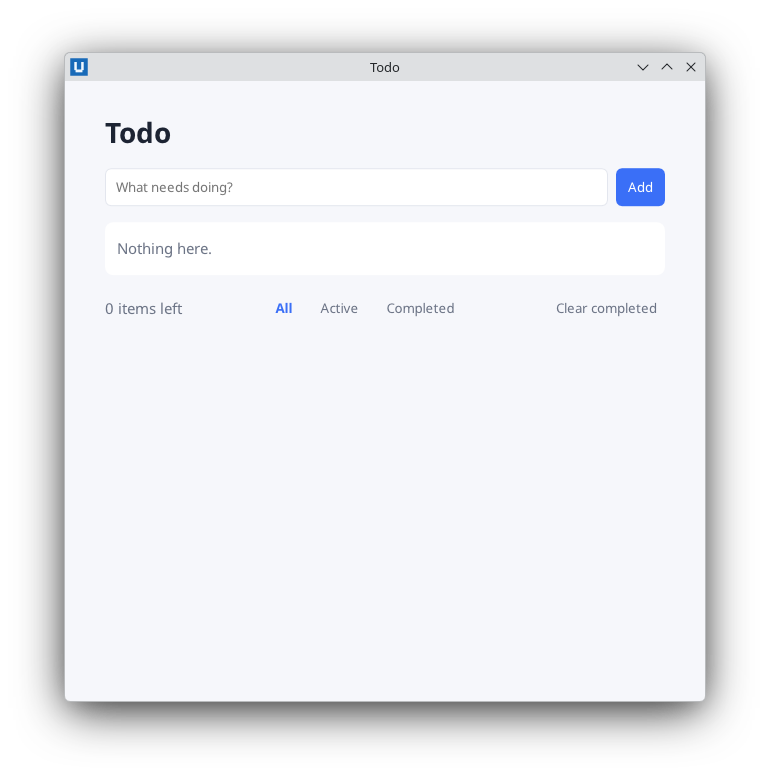
Real capture on KDE Plasma 6.6 Wayland with the released packages.
Option 1: depend on the module from the PowerShell Gallery
The simplest distribution is your folder plus a setup line:
Install-Module NativeHTMLKit -RequiredVersion 0.1.2 -Scope CurrentUser
pwsh -NoProfile -File ./InventoryTool/app.ps1            # Windows PowerShell: powershell.exe -NoProfile -File .\InventoryTool\app.ps1
Pin the version you tested. If you publish your app as a PowerShell module itself, declare the
dependency in its manifest so Install-Module brings the SDK along:
# InventoryTool.psd1
@{
    ModuleVersion   = '1.0.0'
    RootModule      = 'InventoryTool.psm1'
    RequiredModules = @(@{ ModuleName = 'NativeHTMLKit'; RequiredVersion = '0.1.2' })
}
Option 2: ship the module next to the app
For machines without Gallery access, save the module once and ship it inside your folder:
Save-Module -Name NativeHTMLKit -RequiredVersion 0.1.2 -Path ./InventoryTool/Modules
A tiny launcher puts that folder first on PSModulePath and starts the app. The host and the
backend inherit the environment, so the backend run loads the same copy:
# InventoryTool/run.ps1
$env:PSModulePath = (Join-Path $PSScriptRoot 'Modules') + [IO.Path]::PathSeparator + $env:PSModulePath
& (Join-Path $PSScriptRoot 'app.ps1') @args
Users start pwsh -NoProfile -File run.ps1. The saved module contains the hosts for both
platforms, so the same folder works on Linux and Windows. The release zip
NativeHTMLKit-0.1.2-linux-x64+win-x64.zip from the
GitHub releases has the same
module folder if you prefer to unpack it yourself.
Starting the app
- From a terminal or a script:
pwsh -NoProfile -File <folder>/app.ps1orpowershell.exe -NoProfile -ExecutionPolicy Bypass -File <folder>\app.ps1. Script arguments after the path reach both runs of the script. - From a shortcut: use the same command as the shortcut target (Windows) or the
Exec=line of a.desktopfile (Linux). PowerShell itself starts in a console or terminal; check on the target desktop how your shortcut behaves before you hand it out. - From your own launcher that starts the host directly: write an
app.toml(see project scaffolding) and runStart-NativeHTMLKitHost -Manifest <folder>/app.toml. The backend'sStart-NativeHTMLKitScriptcall then only connects. Note thatStart-NativeHTMLKitHostalways starts a desktop session: unlikeStart-NativeHTMLKitScript, it does not switch the host to headless mode whenNATIVEHTMLKIT_TEST_MODE=1is set (observed with 0.1.2).
Execution policy: pwsh -File and powershell.exe -File honour the machine's execution policy.
Signed scripts, -ExecutionPolicy Bypass on the command line, or an organisation policy are the
usual answers; choose what your environment allows.
Before you ship
- Give every window a
-SelfTestpath (or a Pester test) that drives it through the SDK, and run it in CI withNATIVEHTMLKIT_TEST_MODE=1: the host runs the whole protocol without a desktop. - Test once on each real desktop and PowerShell edition you support: native dialogs, clipboard, focus and window placement depend on the platform.
- Do not set
NATIVEHTMLKIT_HOST_BINARYin production. It replaces the bundled, hash-verified host and exists for SDK development. - Keep secrets out of HTML and out of command lines; see security.
Source: nativehtmlkit-powershell/docs/guides/packaging-and-distribution.md · edit the page there.