How to use the clipboard and desktop services
Reference: desktop (clipboard, external open, preferences, capabilities). Example: 10-clipboard-tool.ps1.
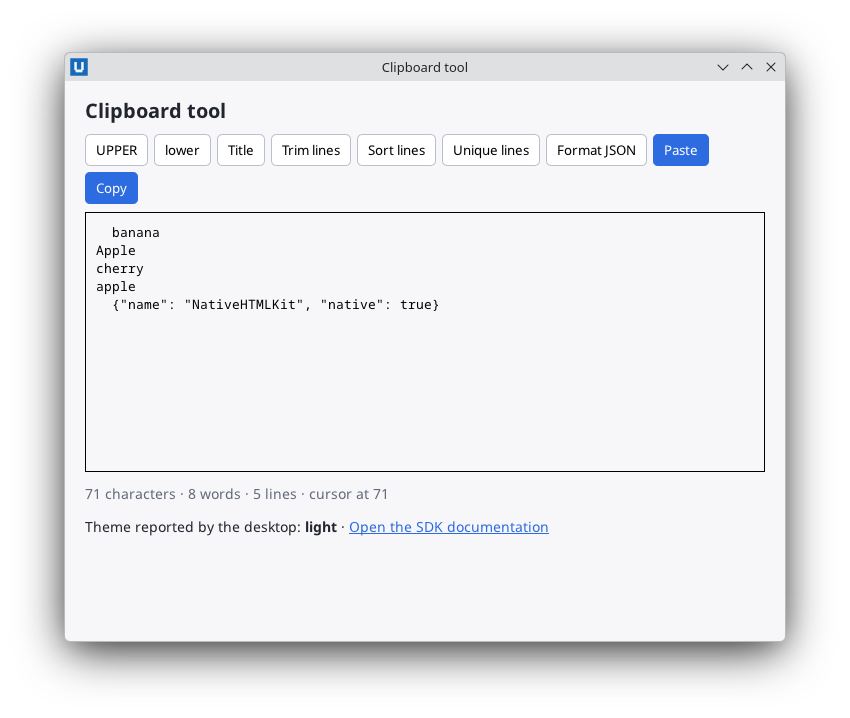
Real capture on KDE Plasma 6.6 Wayland with the released packages.
This guide covers the clipboard, opening links and files with the desktop's default handler, and reading desktop preferences.
Copy and paste text
The SDK reads and writes plain text on the system clipboard through the host. Text controls in your documents handle the usual editing shortcuts themselves; you need these cmdlets for actions such as a "Copy" or "Paste" button.
function Invoke-Copy {
    try {
        Set-NativeHTMLKitClipboard -Application $app -Text (Get-NativeHTMLKitValue -Document $doc -Element text)
        Set-Status 'Copied to the clipboard.'
    } catch [NativeHTMLKit.RpcException] {
        Set-Status (Get-UnsupportedMessage 'Clipboard' $_.Exception)
    }
}

function Invoke-Paste {
    try {
        Set-NativeHTMLKitDocumentValue -Document $doc -Element text -Value (Get-NativeHTMLKitClipboard -Application $app)
        Set-Status 'Pasted from the clipboard.'
    } catch [NativeHTMLKit.RpcException] {
        Set-Status (Get-UnsupportedMessage 'Clipboard' $_.Exception)
    }
    Update-Stats
}
Availability
Get-NativeHTMLKitCapabilities reports features.clipboard_text.available: $true or $false
once observed, $null while not known yet (availability is established by the native request).
In headless test mode the clipboard is unavailable and both cmdlets throw
NativeHTMLKit.RpcException (code -32001, Clipboard requires a native event loop); always
handle that exception, because desktop clipboard owners can also refuse a request. The example
turns -32001 into a short message:
function Get-UnsupportedMessage([string]$What, [NativeHTMLKit.RpcException]$RpcError) {
    if ($RpcError.Code -eq -32001 -or $script:clipboardKnownUnavailable) { return "$What is not available in this session." }
    return "$What failed (code $($RpcError.Code))."
}
Editing commands
To copy the selection of a text control, or paste into it at the caret, use the native editor:
Invoke-NativeHTMLKitEditCommand -Document $doc -Element editor -Command copy
Invoke-NativeHTMLKitEditCommand -Document $doc -Element editor -Command paste
These complete asynchronously; the cmdlet accepting the command does not mean the transfer
succeeded. Observe input events (paste) or the control's value.
Open links and files
Links in the page never navigate. Activating an <a href> gives the backend a link_activated
document event with the href and the resolved url (as described in the
Core guide);
your handler decides what happens, typically opening it in the user's browser:
function Open-Link([string]$Url) {
    if (-not $Url.StartsWith('https://', [StringComparison]::Ordinal)) { Set-Status 'Only https links are opened.'; return }
    try {
        $result = Open-NativeHTMLKitExternal -Application $app -Target $Url -Window $window
        if ($result.accepted) { Set-Status 'Opened the documentation.' } else { Set-Status 'Opening was cancelled.' }
    } catch [NativeHTMLKit.RpcException] {
        Set-Status (Get-UnsupportedMessage 'Opening links' $_.Exception)
    }
}
$null = Register-NativeHTMLKitDocumentEvent -Document $doc -Type link_activated -Callback {
    param($evt)
    $url = [string]$evt.url
    if (-not $url) { $url = $docsUrl }
    Open-Link $url
}
The host reports the link's target; your code decides which schemes it opens (here only https).
Open-NativeHTMLKitExternal accepts http, https, mailto and file URIs and absolute local
paths, and refuses programs, scripts and shortcuts (code -32003). -Reveal shows a file in the file
manager instead of opening it. In headless mode both throw NativeHTMLKit.RpcException -32001
(External open requires a desktop session). Headless runs have no pointer input, so the
link_activated path itself is checked on a desktop.
Desktop preferences and capabilities
$prefs = Get-NativeHTMLKitPreferences -Application $app     # color_scheme, reduced_motion, high_contrast, available, source
$caps  = Get-NativeHTMLKitCapabilities -Application $app    # clipboard_text, external_open, file_dialogs, headless, ...
# The notification carries a preferences snapshot (the same fields as Get-NativeHTMLKitPreferences).
Register-NativeHTMLKitNotification -Application $app -Method 'desktop.preferences_changed' -Callback { param($params) Show-Preferences $params }
Each preference is $null when the host has not observed it; in headless mode available is
$false and source is headless. Pages follow the observed colour scheme through CSS media
queries without any code (styling and layout). Use the
capabilities to hide buttons for services that the current session does not offer.
14-diagnostics.ps1 shows both in an About window.
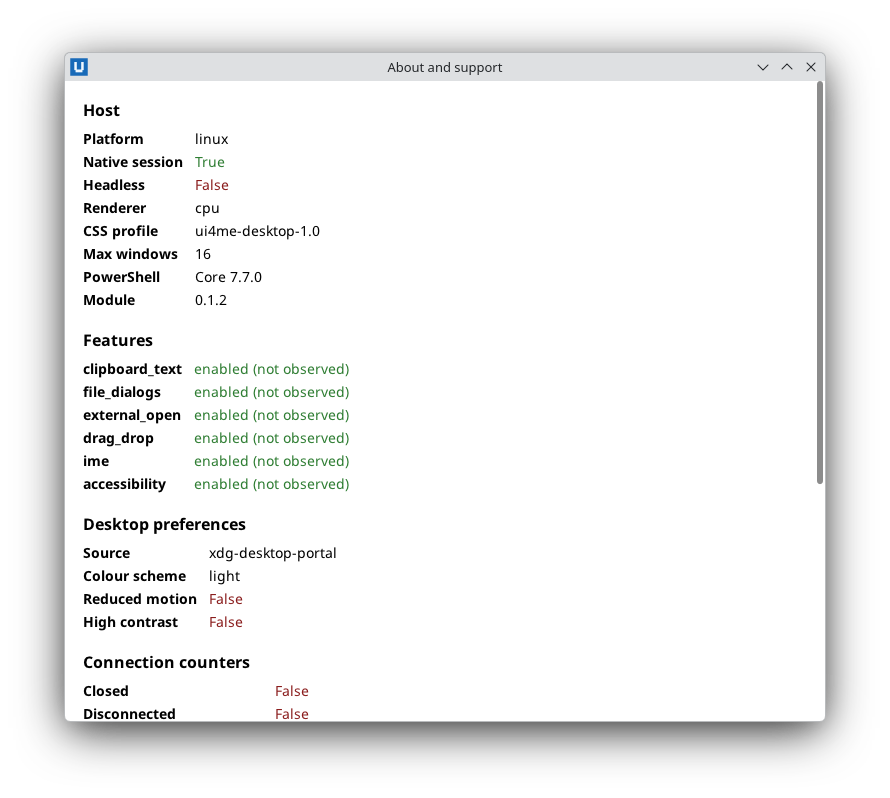
Real capture on KDE Plasma 6.6 Wayland with the released packages.
Privacy
Clipboard content can be sensitive. The SDK's diagnostics never record it. Avoid writing it to logs yourself, and read the clipboard only in response to a user action.
Source: nativehtmlkit-powershell/docs/guides/clipboard-and-desktop.md · edit the page there.